How to Send a GST Invoice on WhatsApp with Messefy (2026 Guide)
The order is done. The customer is happy. Now they say, "Please send the bill."
So you open Excel, type the items, work out the GST, save a PDF, find their email… and two days later they message you on WhatsApp: "Invoice bheja kya?"
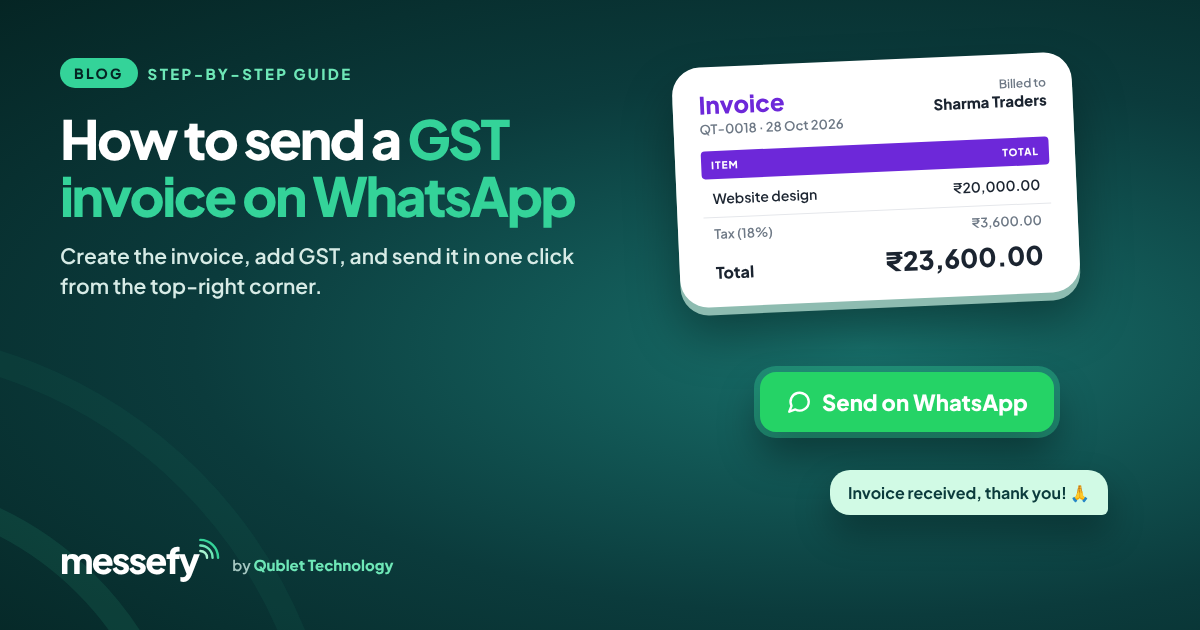
There is a faster way. With Messefy, you can send a GST invoice on WhatsApp straight from your panel. You create the invoice once, and the green Send on WhatsApp button in the top-right corner delivers it to your customer's chat.
This guide walks you through every screen, step by step, with real screenshots.
Why Send Invoices on WhatsApp?
Your customers already talk to you on WhatsApp. That is where they ask for prices, confirm orders and send payment screenshots. So it makes sense for the bill to land in the same chat.
- It actually gets seen. No promotions folder, no "I didn't get your email".
- Follow-ups are easy. The invoice and the conversation sit together, so a payment reminder is one message away.
- It looks professional. A clean, branded invoice builds more trust than a photo of a handwritten bill.
- It saves time. No exporting, attaching and emailing for every order.
Before You Start
Make sure your business details are saved in your business settings: business name, GSTIN, PAN, email, phone and address. Messefy fills these into every new invoice automatically, so you never type them again.
Tip: add your bank details and a signature to your business settings too. The Standard invoice design prints bank details and a signature on every bill, so customers know exactly where to pay.
Step 1 to 6: Create the Invoice
Open Invoices from the left menu, go to All invoices and start a new invoice. You will see the New invoice screen below.
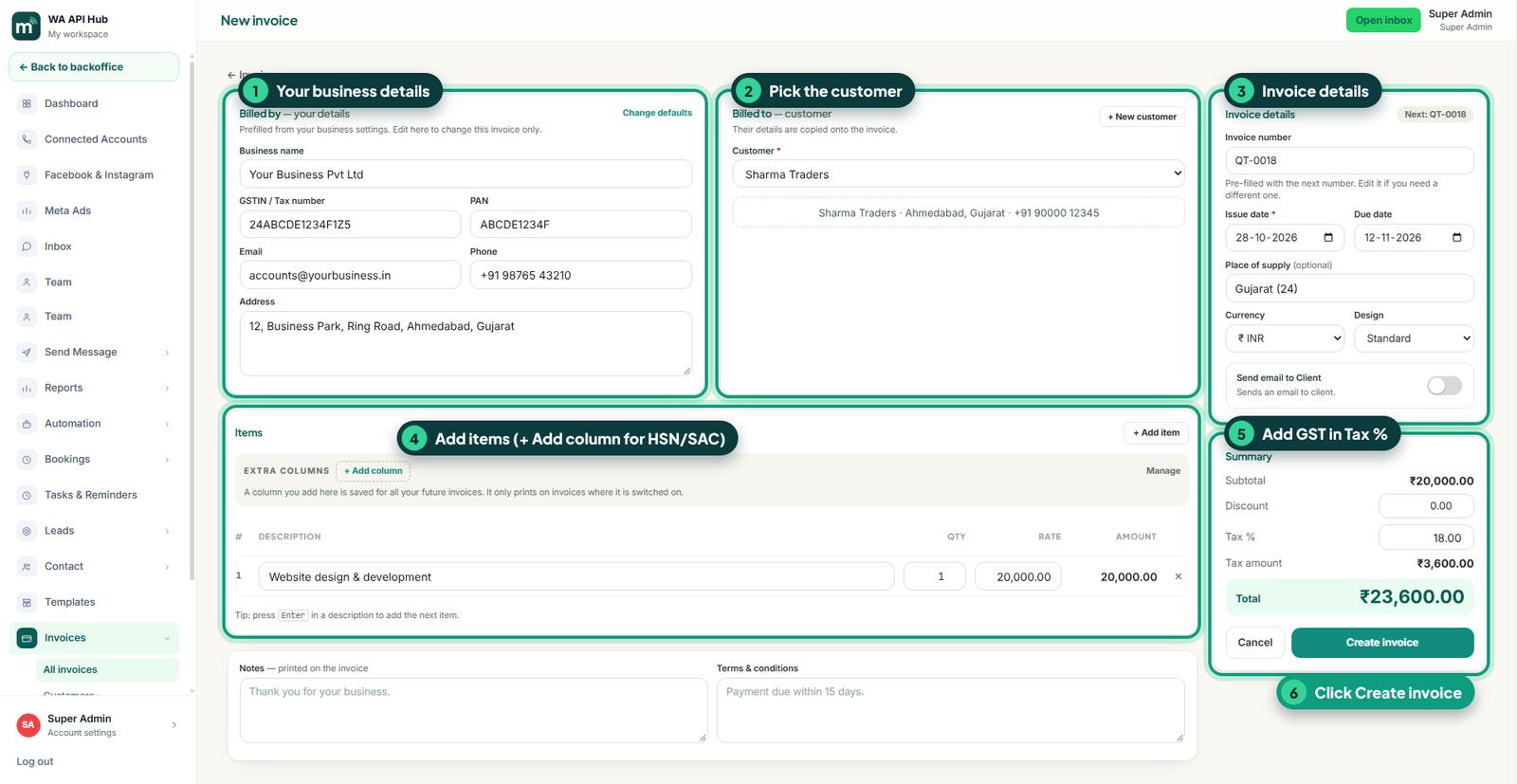
1. Check your business details (Billed by).
Your business name, GSTIN, PAN, email, phone and address are already filled in from your business settings. Anything you change here applies to this invoice only. To change it for all future invoices, click Change defaults.
2. Pick the customer (Billed to).
Choose your customer from the Customer dropdown. Their details are copied onto the invoice, and a preview shows how they will appear. Billing someone new? Click + New customer to add them without leaving the screen.
3. Fill in the invoice details.
The invoice number is pre-filled with your next number (for example, QT-0018), so your numbering stays in order. You can edit it if you need a different one. Then set:
- Issue date and Due date
- Place of supply, such as Gujarat (24). If you leave it empty, the invoice shows N/A.
- Currency (₹ INR by default) and the invoice Design
- Send email to Client, if you also want the customer to get a copy by email
4. Add your items.
Type what you are billing for, the quantity and the rate. The amount is calculated for you. Press Enter in a description to add the next item, or click + Add item.
Need an HSN or SAC code column? Click + Add column under Extra columns. The column is saved for all your future invoices, and it only prints on invoices where you switch it on.
5. Add GST in the Tax % field.
In the Summary panel, enter any discount and your GST rate in Tax %. For 18% GST, type 18. Messefy works out the tax amount and the total instantly.
6. Add notes and click Create invoice.
Add a thank-you note and your terms (for example, "Payment due within 15 days"). Both are printed on the invoice. Then click Create invoice.
A Quick GST Example
Say you bill a customer for website design work worth ₹20,000, and the service attracts 18% GST.
| Line | Amount |
|---|---|
| Website design & development (1 × ₹20,000) | ₹20,000.00 |
| Tax % = 18 | ₹3,600.00 |
| Total | ₹23,600.00 |
CGST, SGST or IGST? If your customer is in the same state as you, 18% GST is made up of 9% CGST and 9% SGST. If they are in another state, it is charged as 18% IGST. Since Messefy's Tax % field holds the total rate, you can mention the split in the Notes (for example, "CGST 9%: ₹1,800 + SGST 9%: ₹1,800") if your customer or your CA needs it shown separately.
Step 7 to 10: Preview and Send It on WhatsApp
Once you click Create invoice, Messefy opens the invoice page. It starts as a Draft, so you can check everything before your customer sees it.
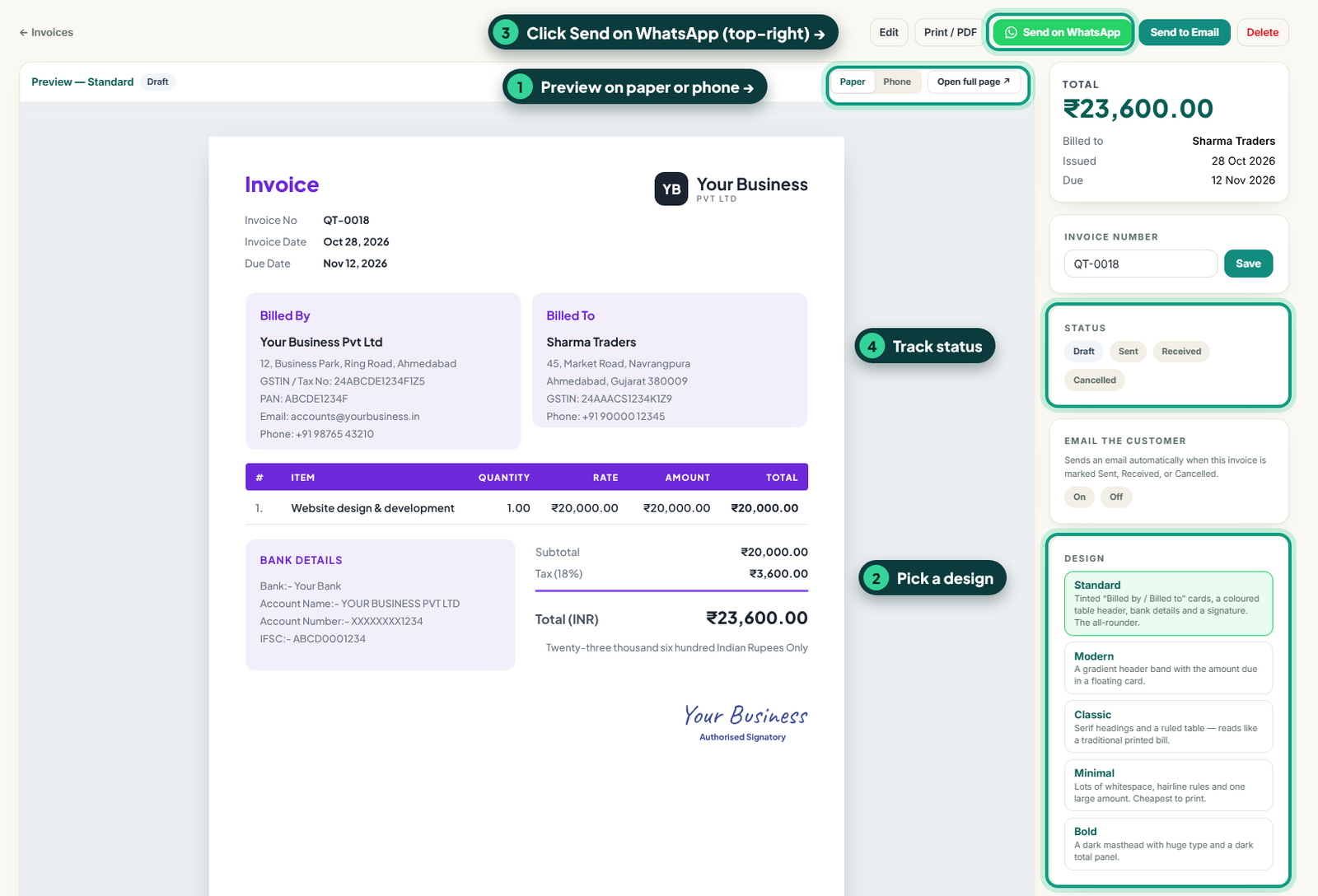
7. Preview on paper or on a phone.
Switch between Paper and Phone to see exactly how the invoice looks when printed and when opened on a mobile. Click Open full page for a bigger view.
8. Pick a design.
Choose the look that suits your brand:
- Standard with tinted "Billed by / Billed to" cards, a coloured table header, bank details and a signature
- Modern with a gradient header band and the amount due in a floating card
- Classic with serif headings and a ruled table, like a traditional printed bill
- Minimal with lots of whitespace, hairline rules and one large amount (cheapest to print)
- Bold with a dark masthead, huge type and a dark total panel
9. Click Send on WhatsApp (top-right corner).
Look at the top-right corner of the invoice page. You will see a row of buttons: Edit, Print / PDF, Send on WhatsApp, Send to Email and Delete. Click the green Send on WhatsApp button, and the invoice goes to your customer on WhatsApp.
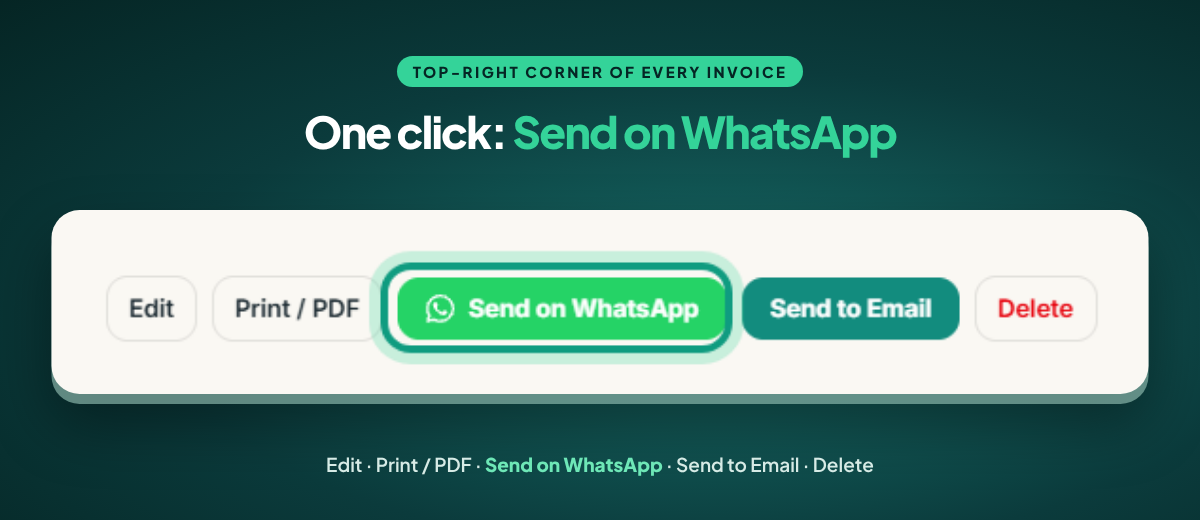
Need a printed copy or a file as well? Use Print / PDF in the same row. Prefer email for some clients? Click Send to Email.
10. Track the status.
Every invoice has a status, so you always know where it stands:
- Draft: created, not sent yet
- Sent: shared with the customer
- Received: the customer has got it (or paid, if you use it that way)
- Cancelled: raised by mistake and kept out of your records
Turn on Email the customer and Messefy automatically emails them whenever the invoice is marked Sent, Received or Cancelled. You also get a share link: anyone with the link can view the invoice without signing in, so you can paste it anywhere.
5 Tips to Get Paid Faster
- Send the invoice the same day. The sooner the bill lands, the sooner it gets paid.
- Keep your bank details on the invoice. The Standard design shows them right next to the total.
- Set a clear due date. "Due in 15 days" works far better than no date at all.
- Follow up in the same chat. A polite reminder on WhatsApp, where the invoice already sits, gets a quicker reply than a phone call.
- Update the status straight away. Mark invoices Received as soon as the money comes in, so your Sent list becomes your follow-up list.
Frequently Asked Questions
Is a GST invoice sent on WhatsApp valid?
Yes. A GST invoice does not have to be on paper or sent by email. What matters is what is on it, such as your GSTIN, the invoice number and date, the customer's details, the items, and the tax rate and amount. WhatsApp is simply how it reaches your customer.
Where is the Send on WhatsApp button?
Open any invoice and look at the top-right corner. The green Send on WhatsApp button sits between Print / PDF and Send to Email.
Can I add HSN or SAC codes?
Yes. On the New invoice screen, click + Add column under Extra columns and add an HSN/SAC column. It is saved for your future invoices too.
Can I change the invoice number?
Yes. Messefy pre-fills the next number to keep your series in order, but you can edit it while creating the invoice, or later from the Invoice number box on the invoice page.
Can I send the same invoice by email too?
Yes. Click Send to Email in the top-right corner, or switch on Email the customer to send updates automatically.
Does my customer need to log in to see the invoice?
No. The share link opens the invoice for anyone who has it, with no sign-in needed.
Ready to Send Your First Invoice on WhatsApp?
Stop chasing PDFs and email replies. Create the invoice, add GST, and send it from the top-right corner in one click. Then track it until it is paid.
Create your workspace to get started.
Want early access or a free demo? WhatsApp us at +91 74055 90190 and just send "Hi". Or contact the team.