How to Set Task & Follow-Up Reminders on WhatsApp (and SMS) So Your Team Never Misses a Thing
A potential customer asks for a quotation, and your sales team promises to call back tomorrow. A clinic needs to follow up with a patient. A service business has to check whether a delivery was completed. Then the day gets busy, messages arrive, calls keep coming, and that important task gets forgotten.
One missed follow-up might mean a lost lead, a delayed payment, or an unhappy customer.
This is where WhatsApp task reminders can make everyday business operations easier. Instead of depending on sticky notes, personal phone alarms, or scattered spreadsheets, you can schedule tasks and receive reminders through WhatsApp. For assigned team tasks, SMS provides an additional delivery channel.
With Messefy, businesses can create reminders for themselves, assign tasks to team members, and manage scheduled work through calendar and list views.
Let's look at how it works and how your business can use it.
1. Why Scattered Reminders Fail in Busy Businesses
Most small and medium-sized businesses don't have a problem with knowing what needs to be done. Their real challenge is remembering everything at the right time.
Consider a sales manager handling several leads. One customer wants a callback after lunch, another needs a quotation by evening, and a third is waiting for a payment confirmation.
When these activities are recorded in different places, important details can easily get missed.
Common Problems with Manual Reminders
- Sticky notes: They can get misplaced, covered, or forgotten.
- Personal phone alarms: They remind one person but don't automatically create accountability for the rest of the team.
- Spreadsheets: They can store task information, but someone must regularly check them.
- Personal WhatsApp chats: Important instructions can disappear among everyday conversations.
- Verbal instructions: Team members may forget details when they are handling multiple responsibilities.
The result is a disconnected workflow where managers spend more time checking whether work has been done than managing the business.
A centralised reminder system gives tasks a scheduled time, a clear recipient, and a trackable status.
2. Why WhatsApp and SMS Work for Business Reminders
A reminder is useful only when the right person receives it at the right time.
WhatsApp is already a familiar communication channel for many Indian business owners and employees. Rather than asking team members to regularly open another system, WhatsApp reminders bring scheduled tasks into a communication channel they already use.
Benefits of WhatsApp Reminders
- Convenient communication: Receive task details directly on your WhatsApp number.
- Clear instructions: Reminder messages include the task title and scheduled date and time.
- Less manual checking: Schedule a reminder in advance instead of repeatedly checking a task list.
- Better team coordination: Assign tasks to the relevant team member.
- Additional delivery channel: Assigned tasks use both WhatsApp and SMS.
Why SMS Is Important Too
WhatsApp Business API has messaging rules. A free-form WhatsApp message can only be sent within the 24-hour customer-service window after the recipient's last message to the business.
A team member may not have recently messaged the business account. In that situation, a free-form WhatsApp reminder may not be deliverable.
That's why assigned tasks on Messefy use both WhatsApp and SMS. The SMS copy provides an additional channel for the reminder, even when the teammate hasn't recently messaged the business on WhatsApp.
The two channels work together to make team reminders more practical.
3. How Messefy's WhatsApp Task Reminders Work
The process is straightforward: create a task, select when you want to be reminded, choose who should receive it, and let the scheduled reminder reach the intended person.
Step 1: Create a Task
Start by creating a task with a short, meaningful title.
Each task supports:
- A title of up to 160 characters.
- A scheduled date.
- A scheduled time.
- A reminder lead time.
Example:
- Task: Call Rahul about website quotation
- Scheduled date: 10 November
- Scheduled time: 4:00 PM
- Remind me before: 30 minutes
This gives the task a clear purpose and a specific time.
Step 2: Choose When to Receive the Reminder
You can decide how early the reminder should arrive.
The reminder setting supports a time from 0 minutes up to 7 days before the scheduled task. The default setting is 30 minutes.
| Reminder Setting | When the Reminder Arrives |
|---|---|
| 0 minutes | At the scheduled time |
| 15 minutes | 15 minutes before |
| 30 minutes | 30 minutes before |
| 1 hour | 1 hour before |
| 1 day | 1 day before |
| 7 days | 7 days before |
This flexibility helps businesses prepare for different types of work.
A quick callback might need a 15-minute reminder, while an important client meeting or operational deadline may need a reminder several days in advance.
Step 3: Choose Who Should Receive the Task
You can create a reminder for yourself or assign the task to a team member.
Self-Reminders
By default, a reminder goes to the account owner's own WhatsApp number.
For example, if you need to review a quotation tomorrow, create a task and schedule the reminder. You'll receive a WhatsApp message with the task details.
Assigned Team Tasks
A super admin can assign a task to a current team member. The team member receives the reminder on their own phone number, which must be saved on their profile.
This is useful when a business owner or manager wants to make sure the responsible employee receives the task directly.
Step 4: Receive a Clear Reminder Message
The reminder format makes it easy to understand whether a task is personal or assigned.
Self-reminder example:
⏰ Reminder: Call Rahul about website quotation

Date: 10 November
Time: 4:00 PM
Assigned task example:
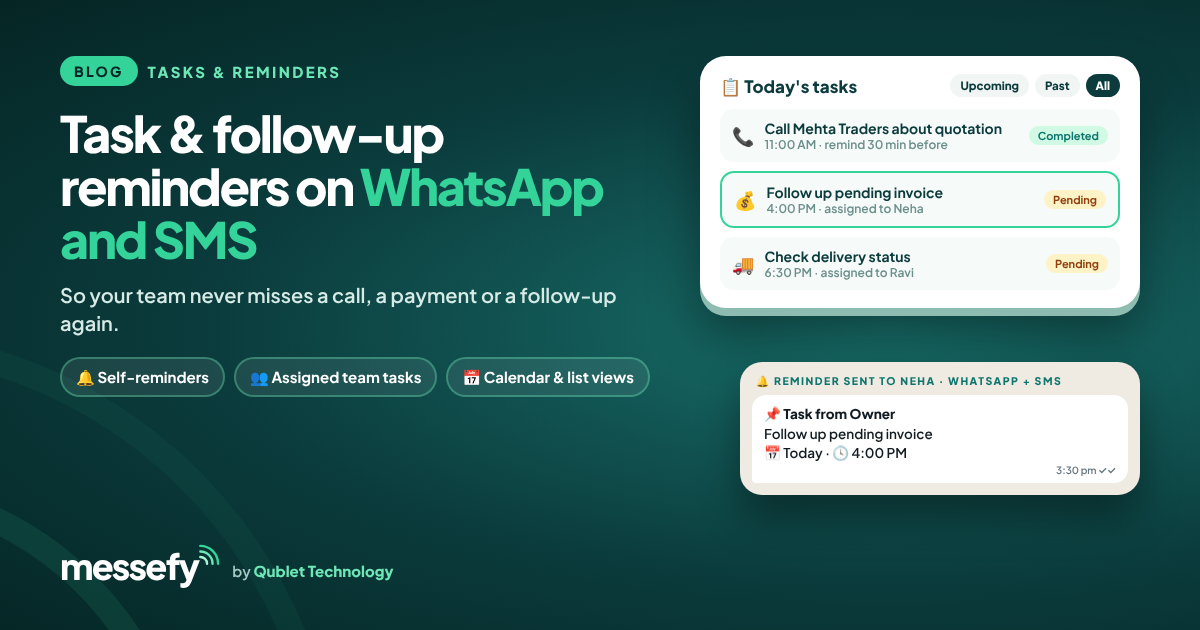
📋 Task from Owner: Call Rahul about website quotation

Date: 10 November
Time: 4:00 PM
The task title, date, and time are included so the recipient can quickly understand what needs attention.
4. Self-Reminders vs. Assigned Team Tasks
Both reminder types help businesses stay organised, but they solve different problems.
| Feature | Self-Reminders | Assigned Team Tasks |
|---|---|---|
| Who creates the task? | Account owner | Super admin |
| Who receives it? | Account owner | Assigned team member |
| Recipient's number | Owner's WhatsApp number | Team member's saved profile number |
| WhatsApp reminder | Yes | Yes |
| SMS reminder | Not included in the self-reminder flow | Yes |
| Main purpose | Personal task management | Team task coordination |
When Should You Use Self-Reminders?
Use self-reminders for activities that you personally need to complete, such as:
- Calling a potential customer.
- Reviewing a quotation.
- Checking a pending payment.
- Preparing for a meeting.
- Following up on an important business decision.
When Should You Assign Tasks?
Assign tasks when another person is responsible for completing the work.
For example, a business owner can assign a delivery-status check to an operations employee or ask a sales executive to contact a specific lead.
The team member receives the reminder directly on their phone through WhatsApp and SMS.
This makes responsibility clearer and reduces the need for managers to repeatedly communicate the same instructions.
5. Manage Tasks with Calendar and List Views
Scheduling reminders is only one part of task management. Businesses also need a convenient way to see what is coming up and review previous activities.
Messefy provides calendar and list views to help users organise scheduled tasks.
Monthly Calendar View
The calendar is the default landing screen for task management.
It displays scheduled tasks across the month, helping you understand what work is planned for different dates.
For example, a clinic manager can review upcoming administrative tasks, while an agency owner can see scheduled client follow-ups and internal deadlines.
Upcoming, Past and All Tasks
You can also switch to different list views:
- Upcoming: See tasks scheduled for the future.
- Past: Review tasks scheduled in the past.
- All: View all available tasks together.
The Upcoming view also displays a count of pending upcoming tasks, making it easier to understand how much work is still waiting.
Track Task Status
Each task can have one of three statuses:
- Pending: The task still needs attention.
- Completed: The work has been finished.
- Cancelled: The task is no longer required.
Tasks can also be deleted when necessary.
For managers, status tracking makes it easier to review task progress without depending entirely on verbal updates.
6. Practical Business Use Cases
Task reminders can support different teams and business operations. Here are five examples.
1. Sales Callback Reminders
A sales executive speaks with a potential customer who requests a callback the following afternoon.
- Task: Call customer about premium plan
- Scheduled time: 3:00 PM
- Reminder: 30 minutes before
The reminder arrives before the scheduled callback, helping the executive stay prepared.
2. Payment Follow-Up
A business has sent an invoice, and the accounts team needs to check the payment status later.
- Task: Follow up on pending invoice payment
- Scheduled time: 11:00 AM
- Assigned to: Accounts team member
The employee receives the task reminder through WhatsApp and SMS.
3. Delivery Status Check
An e-commerce or local service business needs to confirm whether an order has been delivered.
The operations manager creates a task for the responsible employee to check the delivery status at the required time.
This helps prevent important operational checks from getting overlooked.
4. Clinic Follow-Up Call
A clinic receptionist needs to call a patient regarding an administrative follow-up.
The receptionist schedules a task with the patient's relevant details in the title and selects an appropriate reminder time.
The reminder helps the receptionist remember the scheduled call.
5. Staff Duty Reminders
A salon, agency, or service business may need to remind employees about specific duties during the working day.
A manager can assign tasks such as:
- Check equipment before opening.
- Prepare the meeting room.
- Confirm the day's service schedule.
- Review pending customer enquiries.
The assigned employee receives the reminder directly on their phone.
7. Tips for Creating Effective Team Task Reminders
A reminder system works best when tasks are clear and responsibilities are properly assigned.
Write Clear Task Titles
Avoid vague titles such as "Call customer" or "Check work."
Instead, use specific descriptions:
- Call Rahul about the website quotation.
- Confirm payment for invoice 1042.
- Check delivery status for today's orders.
Clear titles help employees understand the task without needing additional explanations.
Choose the Right Reminder Time
Different tasks need different preparation times.
- Quick callbacks: 15–30 minutes before.
- Payment checks: 30 minutes to 1 hour before.
- Important meetings: Several hours or a day before.
- Planned operational activities: Up to 7 days before.
Choose a lead time that gives the recipient enough time to prepare.
Assign One Responsible Person
If a task belongs to a particular employee, assign it to that person.
Clear ownership reduces confusion about who is expected to complete the work.
Update the Task Status
Once work is completed, mark the task as Completed. If it is no longer required, mark it as Cancelled.
Keeping statuses updated makes the task list more useful for everyone.
Keep Task Details Connected to Customer Conversations
When a task is linked to an existing contact and WhatsApp conversation, the related context stays together.
This is especially useful for sales and customer service teams that handle several enquiries throughout the day.
8. Sticky Notes vs. Phone Alarms vs. Spreadsheets vs. Messefy
Different reminder methods may work for individual situations, but managing an entire team's work requires more structure.
| Capability | Sticky Notes | Phone Alarms | Spreadsheets | Messefy Reminders |
|---|---|---|---|---|
| Schedule tasks | Manual | Yes | Yes | Yes |
| Receive WhatsApp reminders | No | No | No | Yes |
| Assign tasks to team members | No | No | Manual coordination | Yes |
| SMS for assigned tasks | No | No | No | Yes |
| Calendar view | No | Limited | Depends on setup | Yes |
| Upcoming and past lists | No | Limited | Manual filtering | Yes |
| Track task status | Manual | Limited | Manual updates | Pending, Completed, Cancelled |
The main difference is that Messefy combines scheduled tasks, WhatsApp reminders, SMS for assigned tasks, and task status management in one workflow.
9. Why Choose Messefy for WhatsApp Task Reminders?
Managing business tasks shouldn't require constantly switching between personal chats, spreadsheets, and separate reminder tools.
Messefy brings task scheduling and WhatsApp-based reminders into a business communication platform.
With its Tasks & Reminders capabilities, you can:
- Create tasks with a title, date, and time.
- Choose a reminder lead time from 0 minutes to 7 days.
- Receive personal reminders on your WhatsApp number.
- Assign tasks to current team members.
- Send assigned task reminders through WhatsApp and SMS.
- View scheduled tasks in a monthly calendar.
- Organise work using Upcoming, Past, and All lists.
- Track tasks as Pending, Completed, or Cancelled.
- Keep tasks connected to relevant contacts and WhatsApp conversations when available.
More Than Task Reminders
Businesses using plans that include CRM can also set a next follow-up date on a lead. Changes to that date are recorded in the lead's activity timeline. This is a companion CRM feature; setting the date does not automatically send a reminder.
Messefy also supports appointment reminders for booked appointments, as a separate booking-specific feature.
Whether you manage a sales team, clinic, salon, agency, or service business, organised task reminders can help your team handle daily responsibilities more consistently.
Ready to Organise Your Team's Follow-Ups?
Stop depending on scattered notes and forgotten instructions. Give your team a clearer way to schedule tasks, receive reminders, and track completed work Explore Messefy.
10. FAQs
1. What Are WhatsApp Task Reminders?
WhatsApp task reminders are scheduled messages that notify a person about an upcoming task through WhatsApp. They help business owners and employees remember callbacks, deadlines, and other responsibilities.
2. Can I Assign WhatsApp Task Reminders to Employees?
Yes. A super admin can assign a task to a current team member. The employee receives the reminder on their own phone number, which must be saved on their profile.
3. Does Messefy Send Assigned Task Reminders Through SMS Too?
Yes. Assigned team tasks use both WhatsApp and SMS. SMS provides an additional delivery channel when a free-form WhatsApp message cannot be delivered outside the 24-hour customer-service window.
4. How Early Can I Schedule a Task Reminder?
You can set a reminder from 0 minutes before the scheduled task up to 7 days before. The default reminder setting is 30 minutes.
5. Can I Track Whether a Task Is Completed?
Yes. Tasks can be marked as Pending, Completed, or Cancelled. You can also view tasks through the calendar and Upcoming, Past, and All lists.
Explore how Messefy can help your business organise tasks and follow-ups Messefy.